
Dynamic Product Ads let you automatically show the most relevant product from your catalog to someone based on their behavior.
Think of it as a smart retargeting engine. Instead of manually creating an ad for every SKU, Meta dynamically pulls product data: name, image, price, etc. from your catalog and plugs it into an ad template.
DPA setup requires 3 main steps:
- Upload your product catalog to Meta Commerce Manager
- Add content IDs (usually product or variant IDs) into your pixel events
- Create a product set and ad template. Meta will automatically render the right product for each user
If done correctly, your ad looks like this:

When Should You Use DPA?
DPA is not for cold acquisition. It shines when:
- Your site gets consistent traffic (ideally >500 visitors per day)
- You have multiple SKUs and repeat buyers
- You’ve got abandoned cart flows or view content retargeting in place
The Silent Killer: Catalog Match Rate
Here’s where most brands get tripped up. Even when your pixel is firing and your catalog is uploaded, Meta can’t deliver the right product unless the catalog match rate is high.
Go to:
Commerce Manager → Catalog → Events → Check Match Rate
Here’s what we saw in one client’s account:
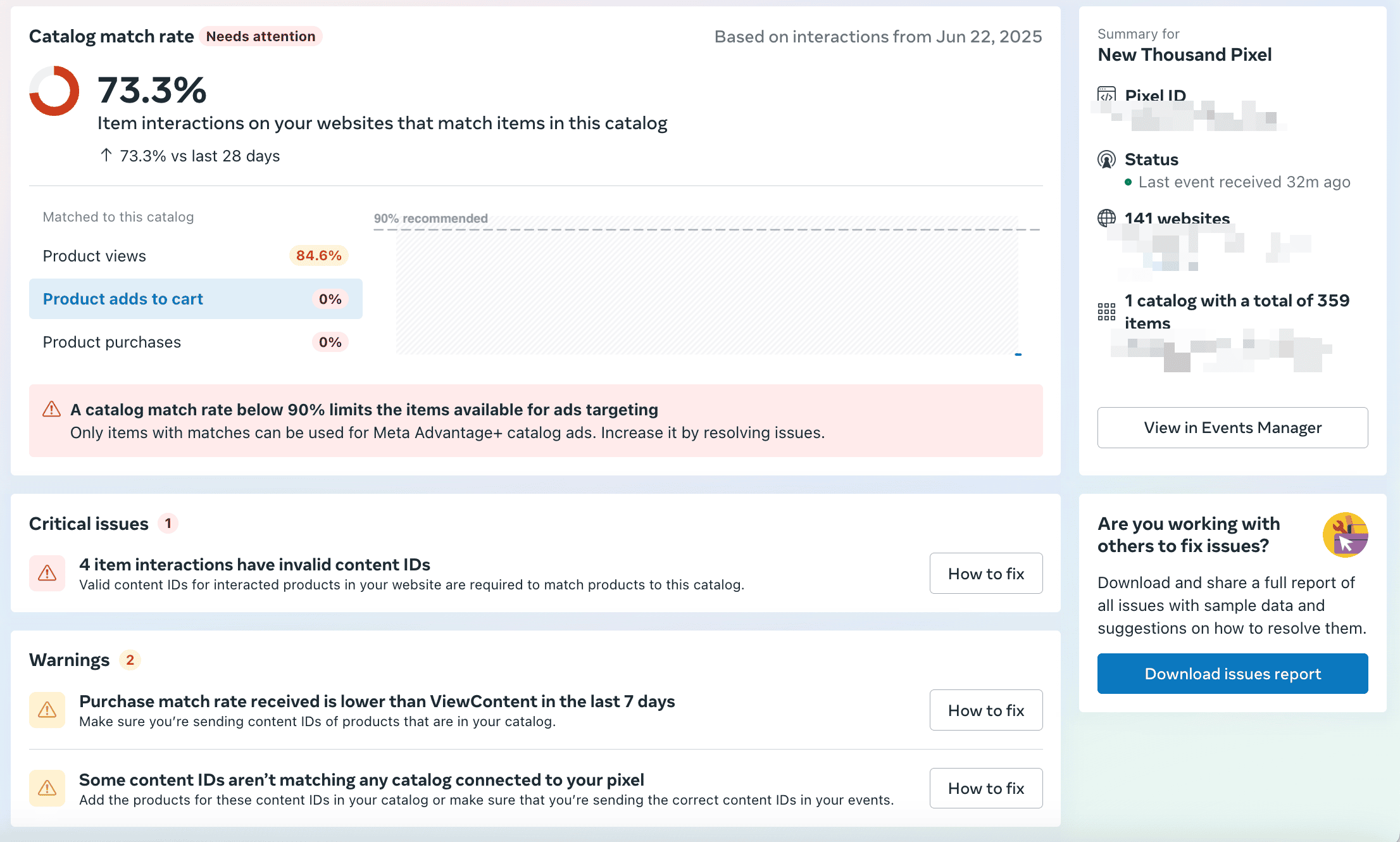
Only 73.3% of pixel events matched the catalog. That meant zero adds to cart and zero purchases were eligible for targeting. Meta literally couldn’t serve DPAs for those interactions.
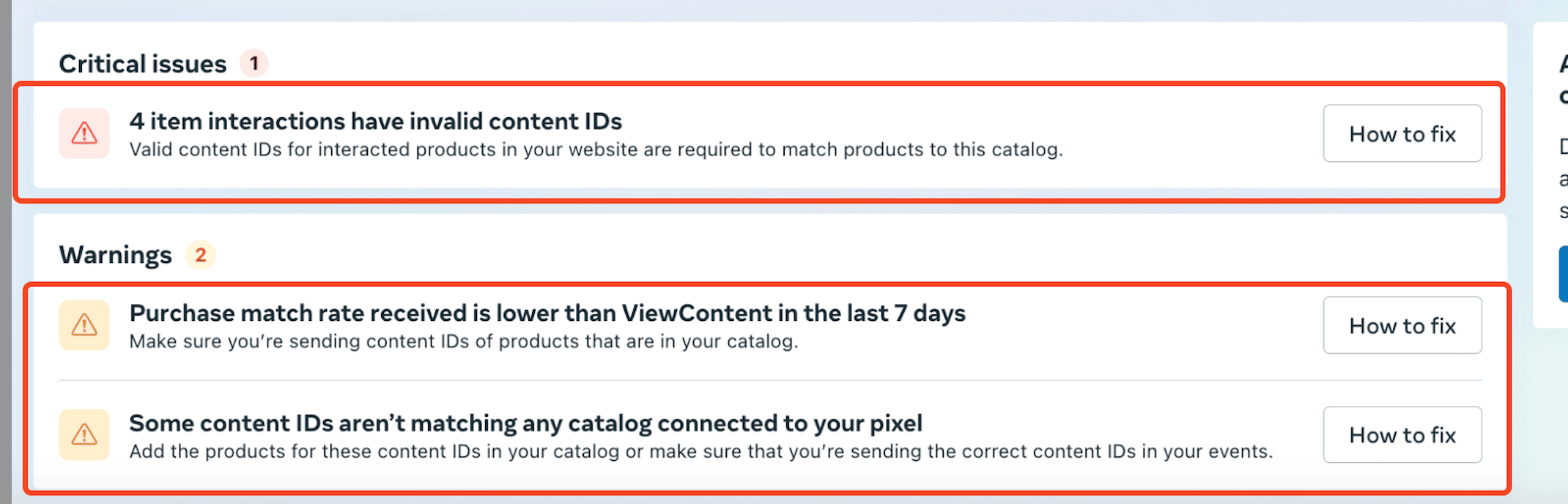
This also triggered several warnings:
- Invalid content IDs
- Low purchase match rate
- Pixel events not matching any catalog
The Real Problem: Product ID vs Variant ID
Here’s where things got messy.
The Shopify site was sending product IDs through pixel events
The Meta catalog was using variant IDs (or vice versa)
So Meta saw a ViewContent event with content ID 12345
But in the catalog, there was no product with that ID. It had 12345-v1 instead
No match, no ad.
To fix this, we standardized the content ID structure in both the catalog and events. For this brand, we chose to only use variant ID across the board and updated the pixel logic accordingly.
Once we fixed that, here’s what happened:
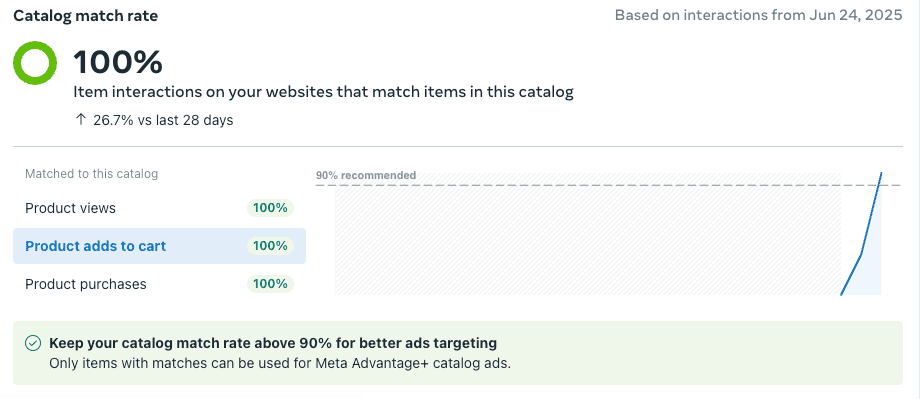
Match rate jumped to 100%. Adds to cart and purchases were now eligible for targeting. The DPA campaign started performing the way it was supposed to.
How to Check and Fix It for Your Store
- Open Commerce Manager → Catalog → Events
- Look at Catalog Match Rate
- If it’s under 90%, click “How to fix” and inspect the invalid content IDs
- Compare them to your catalog: is the pixel sending variant IDs or product IDs? Does your catalog use the same?
If they’re different, you’ll need to:
- Update your pixel content ID logic
- Or update your catalog so the ID types match
Recap
- DPA works only if Meta can match pixel events to catalog products
- A mismatch between product ID and variant ID is the most common silent error
- Fixing the mismatch unlocks full targeting potential and performance
If your DPA has low CTRs, low ROAS, or strange delivery, don’t just change the creative. Instead, start by checking your match rate.
It might be the single most valuable fix you make this quarter.